Install, Configure and Secure FTP Server in CentOS
FTP (File Transfer Protocol) is a traditional and widely used standard tool for transferring files between a server and clients over a network, especially where no authentication is necessary (permits anonymous users to connect to a server). We must understand that FTP is unsecure by default, because it transmits user credentials and data without encryption.
In this guide, we will describe the steps to install, configure and secure a FTP server (VSFTPD stands for "Very Secure FTP Daemon") in CentOS/RHEL 7 and Fedora distributions.
Note that all the commands in this guide will be run as root, in case you are not operating the server with the root account, use the sudo command to gain root privileges.
Step 1: Installing FTP Server
Installing vsftpd server is straight forward, run the following command in the terminal.
After the installation completes, the service will be disabled at first, so we need to start it manually for the time being and enable it to start automatically from the next system boot as well:
Next, in order to allow access to FTP services from external systems, we have to open port 21, where the FTP daemons are listening as follows:
Step 2: Configuring FTP Server
Now we will move over to perform a few configurations to setup and secure our FTP server, let us start by making a backup of the original config file /etc/vsftpd/vsftpd.conf:
Next, open the config file above and set the following options with these corresponding values:
Now configure FTP to allow/deny FTP access to users based on the user list file /etc/vsftpd.userlist.
By default, users listed in userlist_file=/etc/vsftpd.userlist are denied login access with userlist_deny option set to YES, if userlist_enable=YES.
However, userlist_deny=NO alters the setting, meaning that only users explicitly listed in userlist_file=/etc/vsftpd.userlist will be permitted to login.
That’s not all, when users login to the FTP server, they are placed in a chroot’ed jail, this is the local root directory which will act as their home directory for the FTP session only.
Next, we will look at two possible scenarios of how to chroot FTP users to Home directories (local root) directory for FTP users, as explained below.
Now add these two following options to restrict FTP users to their Home directories.
And also by default, vsftpd does not allow the chroot jail directory to be writable for security reasons, however, we can use the option allow_writeable_chroot=YES to override this setting.
Save the file and close it.
Step 3: Securing FTP Server with SELinux
Now, let’s set the SELinux boolean below to allow FTP to read files in a user’s home directory. Note that this was initially done using the command:
However, the ftp_home_dir directive has been disabled by default as explained in this bug report: https://bugzilla.redhat.com/show_bug.cgi?id=1097775.
Now we will use semanage command to set SELinux rule to allow FTP to read/write user’s home directory.
At this point, we have to restart vsftpd to effect all the changes we made so far above:
Fix semanage not found
To fix first we will see how to fix this in CentOS 7.
First let us find out which package provides the "semanage" command. To do so, run the following command:
Or
Sample output from CentOS:
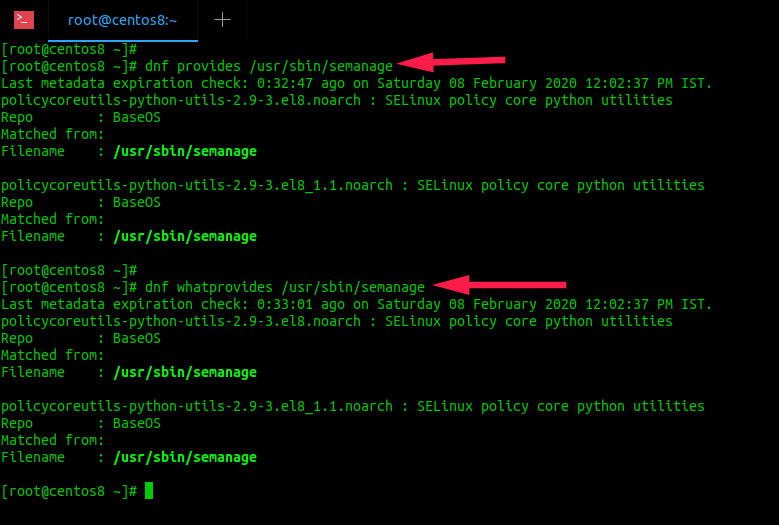
As you can see, the package named "policycoreutils-python-utils-2.9-3.el8_1.1.noarch" provides the "semanage" command, and it is available in the default repository i.e. BaseOS.
So, let us install this package using the following command as root user:
Note:
If you don't know the exact path of semange command, you can simply run the following command:
sudo dnf provides semanage Or
Or
This will display the same result as above commands.
Usually the executable files are located in any one of these locations - /usr/sbin and /usr/bin and /usr/local/bin. Hence, we can search directly in these locations.
Step 4: Testing FTP Server
Now we will test FTP server by creating a FTP user with useradd command.
Afterwards, we have to add the user ravi to the file /etc/vsftpd.userlist using the echo command as follows:
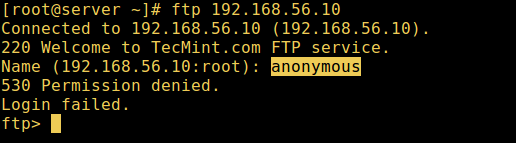
Now it’s time to test if our settings above are working correctly. Let’s start by testing anonymous logins, we can see from the screenshot below that anonymous logins are not permitted:
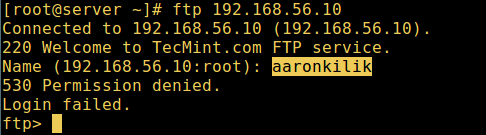
Let’s also test if a user not listed in the file /etc/vsftpd.userlist will be granted permission to login, which is not the case as in the screen shot below:
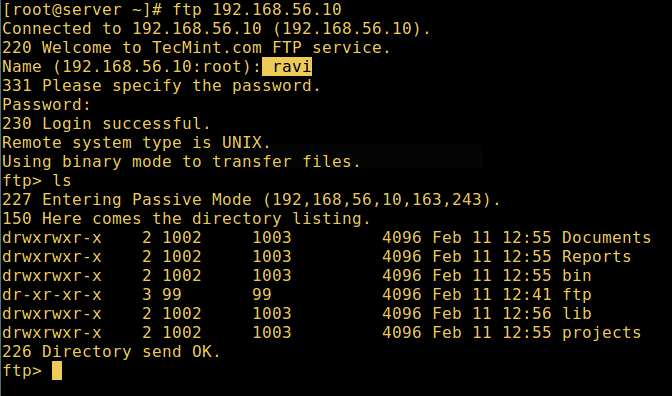
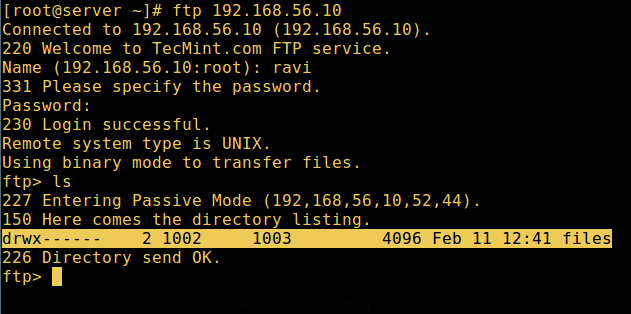
Now do a final check if a user listed in the file /etc/vsftpd.userlist, is actually placed in his/her home directory after login:
Warning: Using allow_writeable_chroot=YES has certain security implications, especially if the users have upload permission, or shell access.
Only activate this option if you exactly know what you are doing. It’s important to note that these security implications arenot vsftpd specific, they apply to all FTP daemons which offer to put local users in chroot jails as well.
Therefore, we will look at a more secure way of setting a different non-writable local root directory in the next section.
Step 5: Configure Different FTP User Home Directories
Open the vsftpd configuration file again and start by commenting the unsecure option below:
Then create the alternative local root directory for the user (ravi, yours is probably different) and remove write permissions to all users to this directory:
Next, create a directory under the local root where the user will store his/her files:
Then add/modify the following options in the vsftpd config file with these values:
Save the file and close it. Once again, let’s restart the service with the new settings:
Now do a final test again and see that the users local root directory is the FTP directory we created in his home directory.
Bibliography
https://www.tecmint.com/install-ftp-server-in-centos-7/
https://ostechnix.com/linux-troubleshooting-semanage-command-not-found-in-centos-7rhel-7/