Oracle Database 23ai EE Installation
1. Create Golden Image
What is a Golden Image in the Oracle context? A Golden Image is a "master" copy of an Oracle installation (usually Oracle Home + clean configurations) that can be cloned or deployed to other servers, ensuring that the resulting instances have the same software, patches and base configuration. Oracle supports this functionality directly via the -createGoldImage option in the installer.
The benefits:
Faster deployment of new instances (fewer manual steps).
Homogeneity of environments (same Oracle Home, same patches).
Less repeated manual configuration errors. But be careful: the Golden Image will not contain the datafiles or database data, but the Oracle software itself (the home). The data and database-specific configurations are usually applied later.
1.1 Preliminary preparations
Make sure that the database is closed and that there are no Oracle processes running.
Clean up temporary files, logs, environment-specific directories (e.g., audit logs, large trace files, temporary). You want the image to be as "clean" as possible.
Remove (or archive) any custom information that should not be repeated on each clone (e.g., configuration files with specific hostnames, unique server scripts, /etc/hostname files, etc.).
Verify that the ORACLE_HOME is correctly configured and that the installation is consistent.
1.2 Create Golden Image
Oracle allows you to create a home image using the -createGoldImage option (this option is documented at least since Oracle 21c).
If your Oracle Home is in /u01/app/oracle/product/23c/dbhome_1, you would do:
-destinationLocation /u01/gold_images is the folder where the ZIP image will be generated.
-silent to not show GUI (optional, if your installer allows it).
This command will generate a ZIP file, for example db_home_2025-10-*, *.zip, which contains all the home installation files, not including database data.
The Oracle manual describes it this way in its "Gold Image How To" document for versions 19c and later: the base home is converted to an image, which can then be used for new installations or cloning.
2. Oracle Linux 9 Installation
Installing the operating system correctly is essential to then optimize Oracle. We will use Oracle Linux 9 64-bit, which is binary compatible with RHEL 9 and certified for Oracle 23ai (as of the latest updates). Oracle Linux offers the Unbreakable Enterprise Kernel (UEK) optimized for Oracle loads; it is recommended to use it.
2.1. Virtual Machine Requirements
For the operating system and database to function correctly, the following minimum requirements are recommended:
CPU: 4 cores
RAM: 16GB
Disk: 1TB
Display: 1024x768 16:9 screen
Network: 1Gbit NIC
Virtual Machine Specs
Parameter | Value |
|---|---|
vCPUs | 4 Cores, 1 Socket |
RAM | 16384 MiB |
Network | virtio, bridge=vmbr0 |
SCSI Controller | virtio-scsi-pci |
CPU Type | X86-64-AES-V3 |
Disk requirements
Disk | Size | Mount Point | Usage | Driver |
|---|---|---|---|---|
Disk 0 | 100 GiB | / | OS & Swap | virtio-block |
Disk 1 | 100 GiB | /u01 | Database Core Files | virtio-block |
Disk 2 | 500 GiB | /u02 | Database User Data | virtio-block |
Disk 3 | 500 GiB | /u03 | Fast Recovery Area | virtio-block |
2.2. Creating Dedicated Volume Groups (VGs)
Now, you will switch to LVM partitioning scheme.
Select the vda disk in the devices panel. Click the + button to create a new partition. Specify a mount point. Leave the size blank to use all remaining space and set the file system type to Physical Volume (LVM).
In the right pane, under "Volume Group", select "Create a new volume group" and name it ol-root.
Repeat this process for the remaining disks:
Select the vdb disk, create a Physical Volume that occupies the entire disk and assign it to a new VG named ol-db.
Select the vdc disk, create a Physical Volume that occupies the entire disk and assign it to a new VG named ol-userdata.
Select the vdd disk, create a Physical Volume that occupies the whole disk and assign it to a new VG named ol-fra.
The decision to create one VG per disk is a deliberate design strategy. While common LVM practice is to group multiple disks into a single VG to maximize space flexibility, this approach prioritizes performance isolation. By segregating disks into separate VGs, it ensures that I/O workloads at one mount point (e.g., datafiles in /u02) do not compete for physical disk bandwidth with loads from another (e.g., the FRA in /u03). This emulates the allocation of dedicated LUNs from a SAN and is a recommended practice for production databases where predictable performance is crucial.
2.3. Creating Logical Volumes (LVs)
Creation of Logical Volumes (LVs): With the VGs defined, proceed to create the logical volumes.
Select the VG ol-root and click + to add the following LVs:
Name: ol_root, Size: 70G, Mount Point: /, File System: xfs.
Name: ol_swap, Size: 16G, Mount Point: (none), File System: swap.
Select the VG ol-db and create a LV:
Name: db, Size: 100 GiB, Mount Point: /u01, File System: xfs.
Repeat the process for the other VGs:
In ol-userdata, create data mounted on /u02.
In ol-fra, create recovery mounted on /u03.
3. Post-Installation Configuration and Operating System Hardening
3.1. Network and firewall configuration
Static network configuration and accurate firewall rules are critical for a database server.
Assign Static IP: Configure a static IP address for the main network interface through the GNOME network configuration or by using nmcli.
Configure firewalld: Oracle Database and APEX require certain ports to be open for communication. Use the firewall-cmd command to permanently open the ports for the Oracle Listener (1521) and for Oracle REST Data Services (ORDS), which will be used for APEX (for example, 8181).
3.2. Installing Prerequisites
Oracle Database requires specific Linux kernel parameter settings for optimal performance and stability. The preferred way to apply these settings is via the oracle-database-preinstall-23ai package.
To install the package, run the following command:
3.3. Variables Creation
Before installing the database, it is advisable to define certain variables for the oracle user. To do this, follow these steps:
Open the file ~/.bash_profile (or ~/.bashrc) with your preferred editor, for example:
Add the lines that define the desired variables at the end of the file. For example, with paths adapted to your installation:
To immediately apply these variables to your current session, run:
4. Deploying the Database from the Gold Image
With the Gold Image created, the process of deploying a new Oracle Home is fast and consistent. This section covers using the image to configure the final database environment.
4.1. Deploying the Oracle Home
Create Final Directories: As the oracle user, create the final directory structure that will comply with the OFA (Optimal Flexible Architecture).
Now we copy the Gold Image via scp or ftp or any other method and unzip it into the folder created earlier:
4.2. Registering the Oracle Home
The unzipped Oracle Home must be registered in the Oracle central inventory so that it is recognized by the database tools.
From the new Oracle Home, run the installer in silent mode or graphical mode. This does not reinstall the software, but registers it. Use the same answer file, making sure that ORACLE_HOME points to the correct directory.
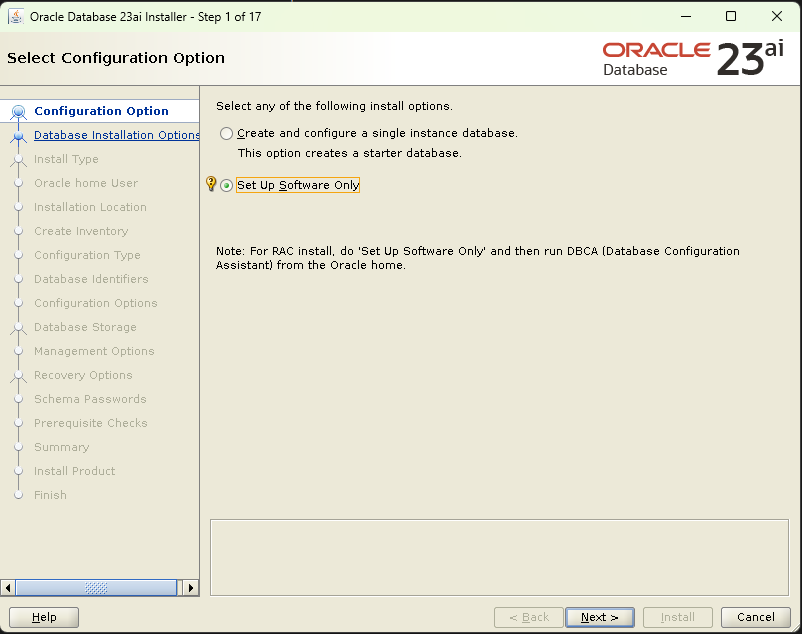
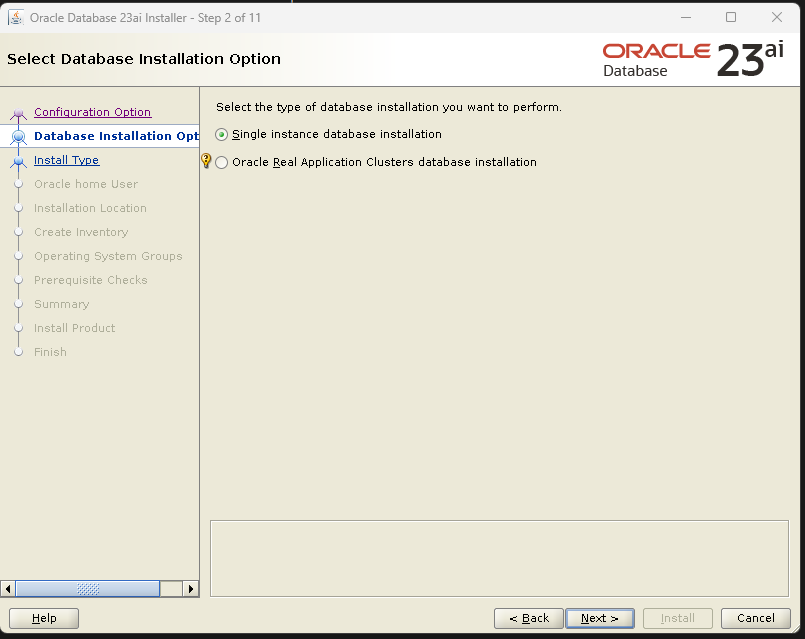
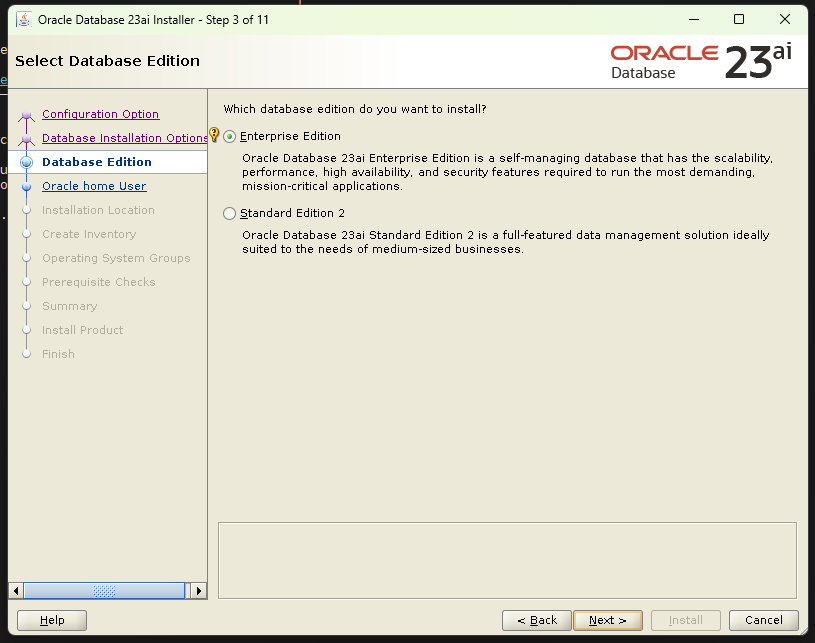
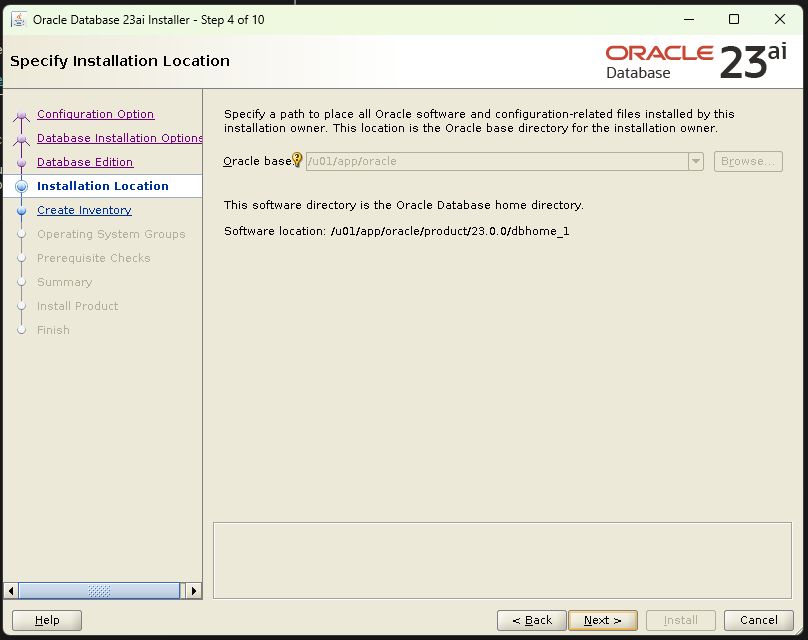
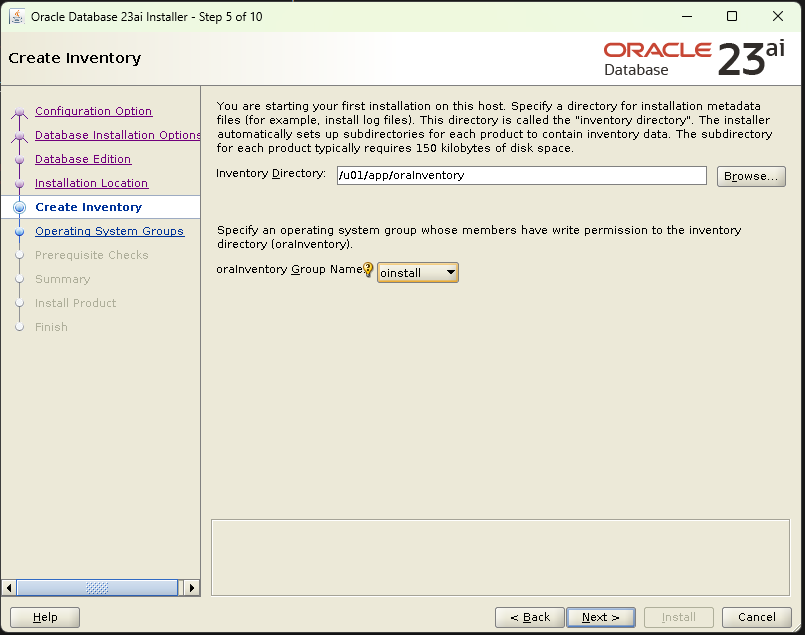
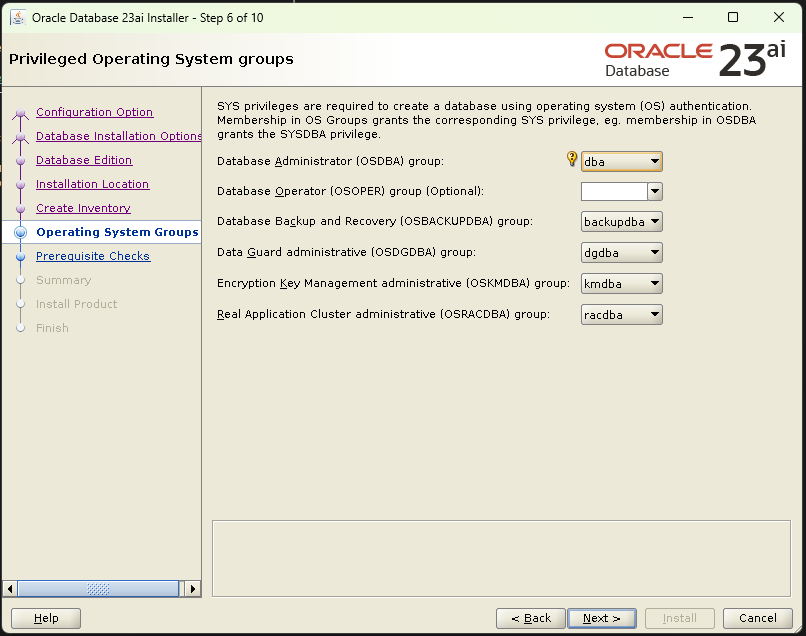
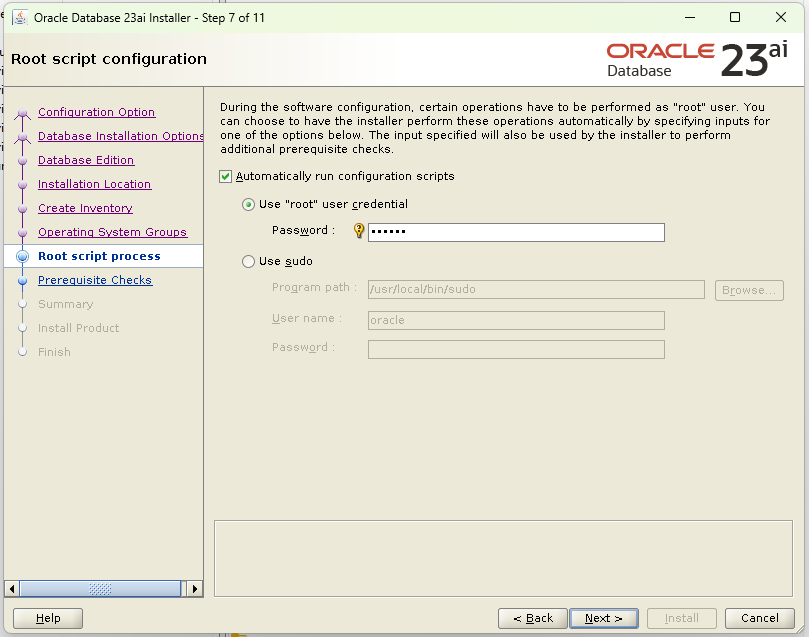
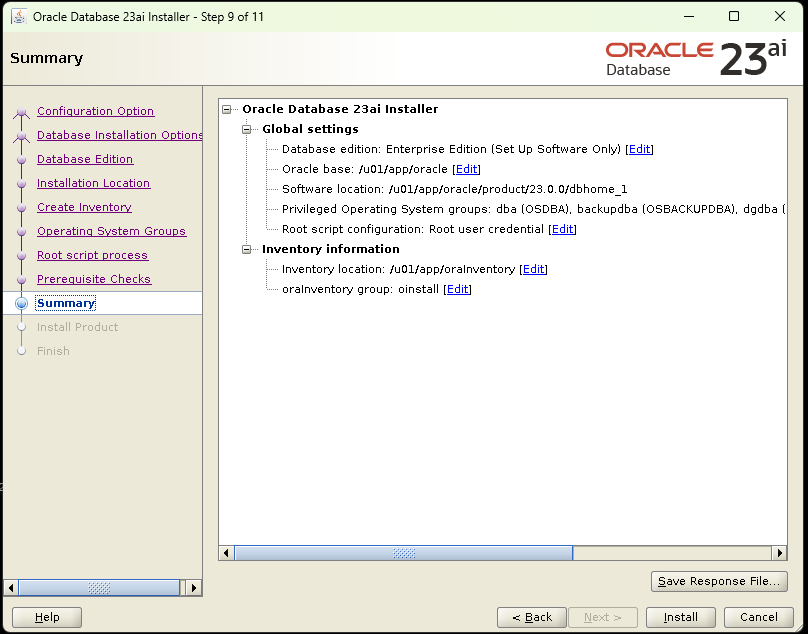
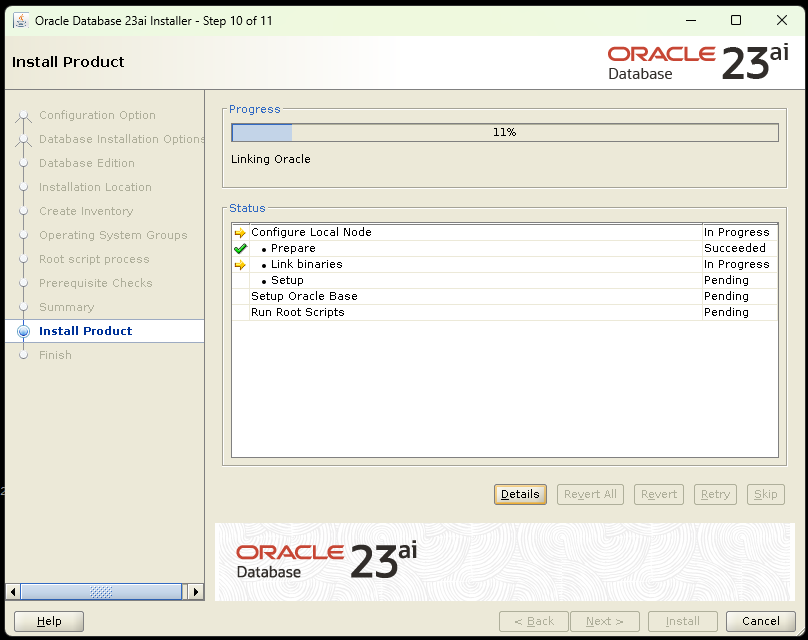
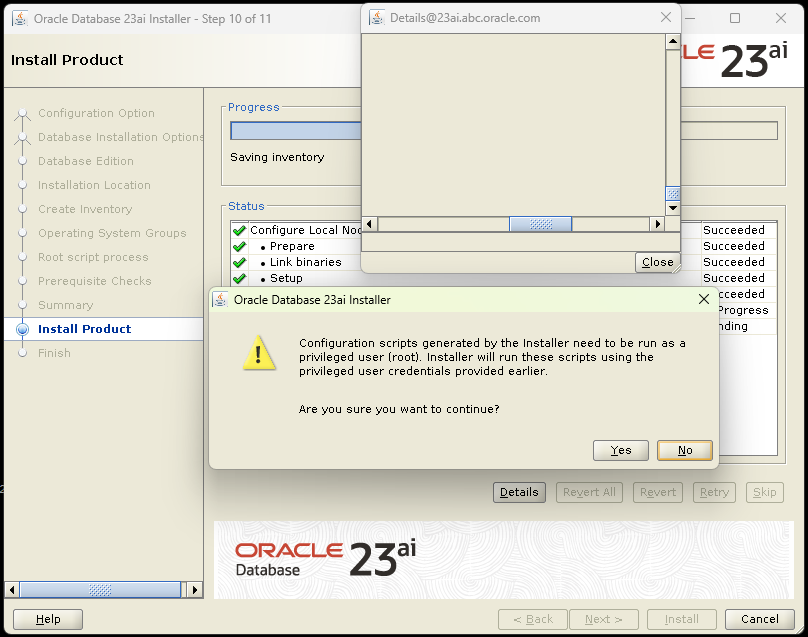
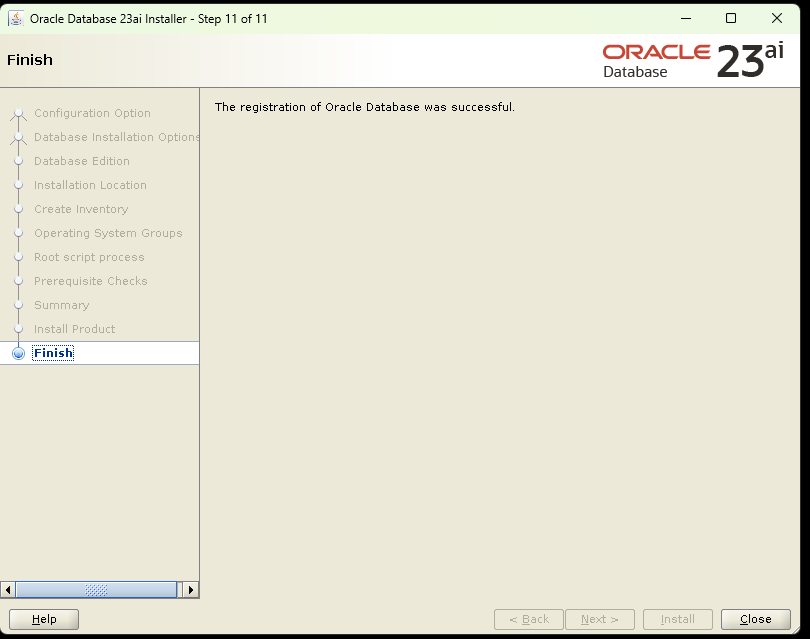
4.4. Creating the Database with dbca
With Oracle Home functional, the next step is to create the database.
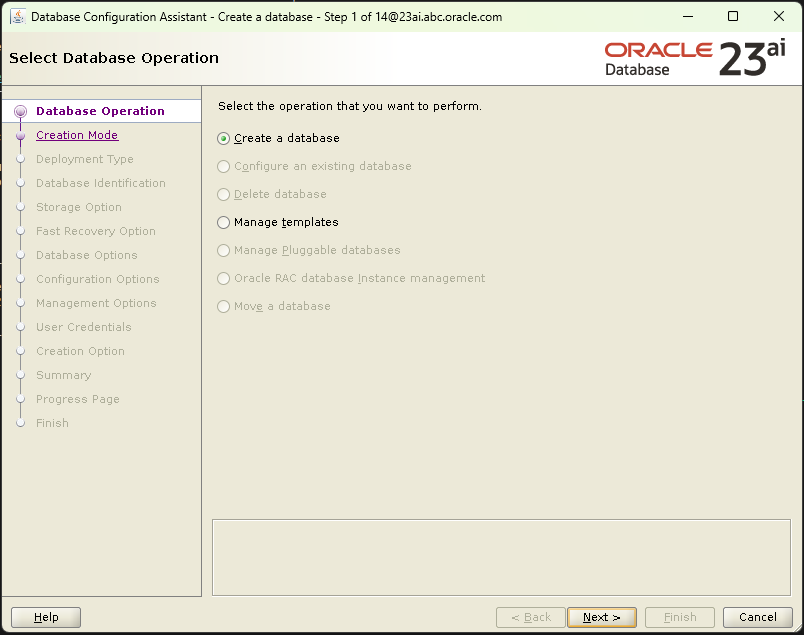
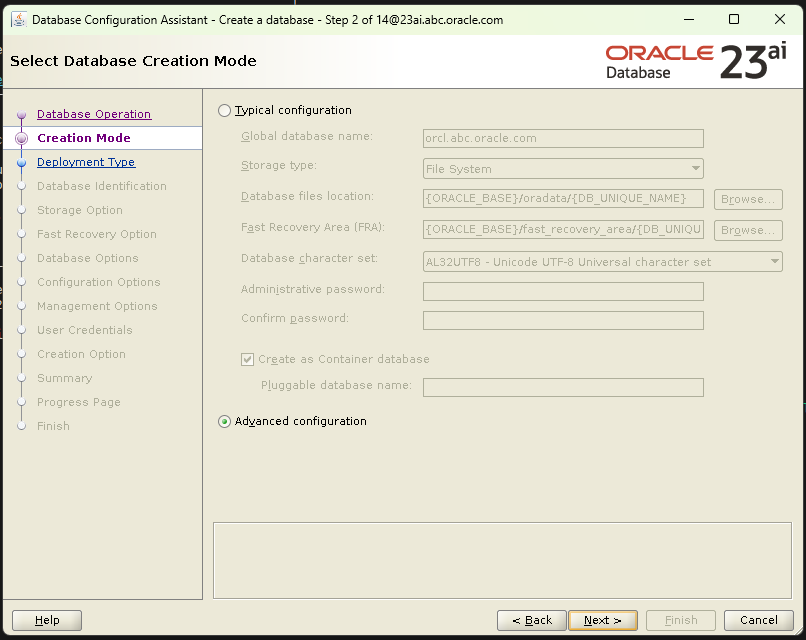
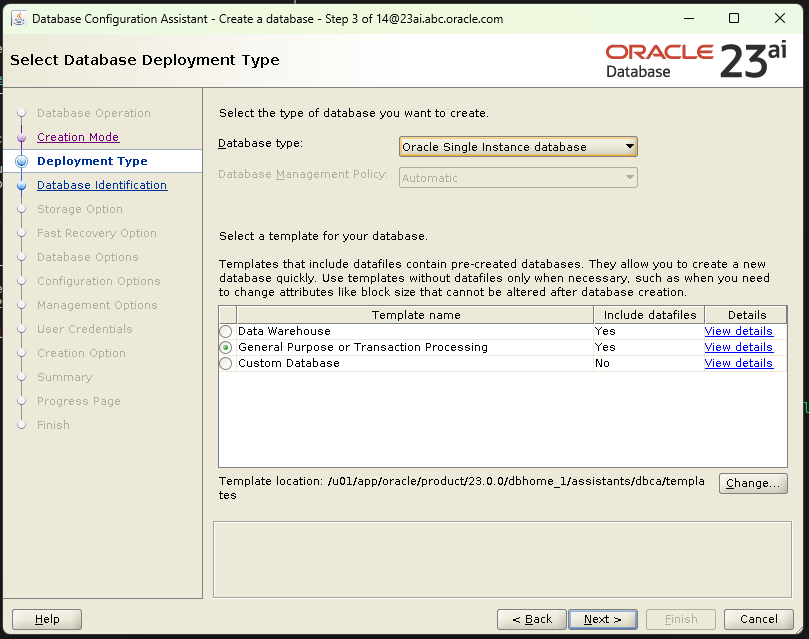
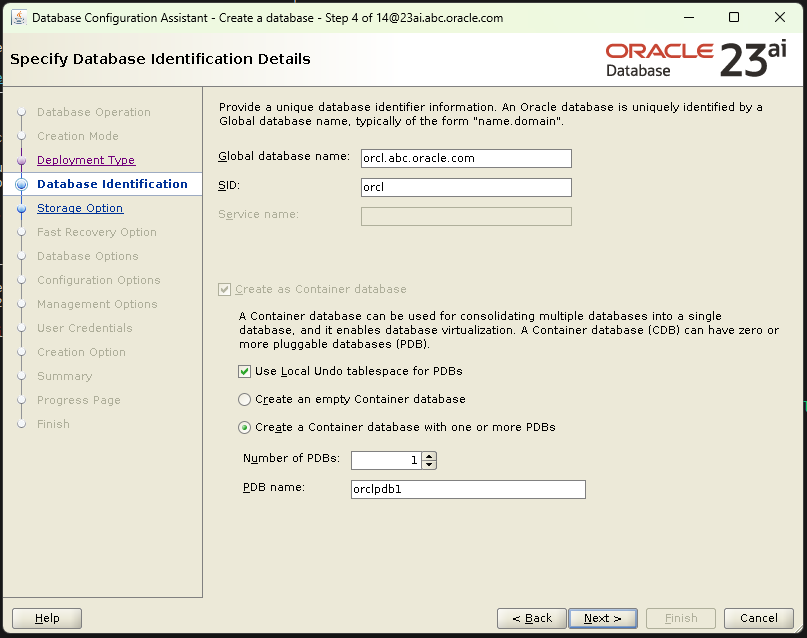
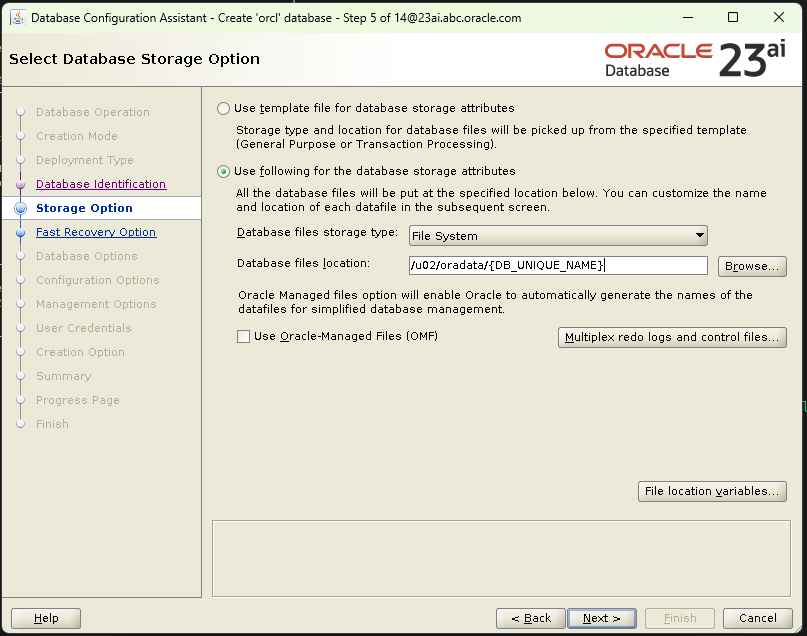
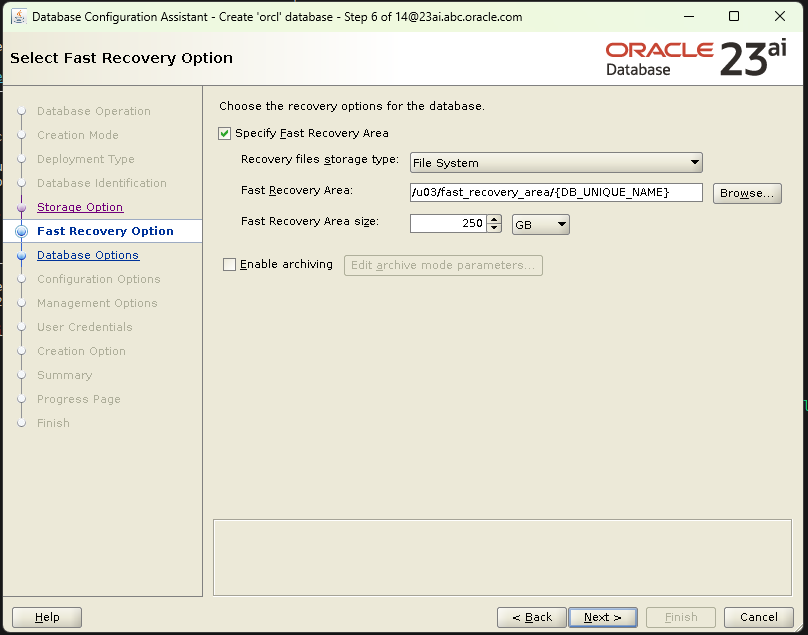
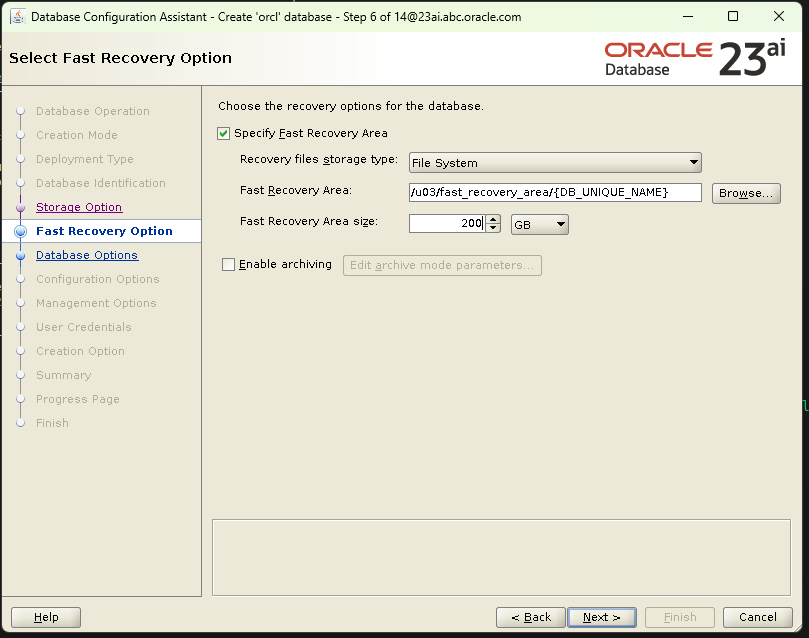
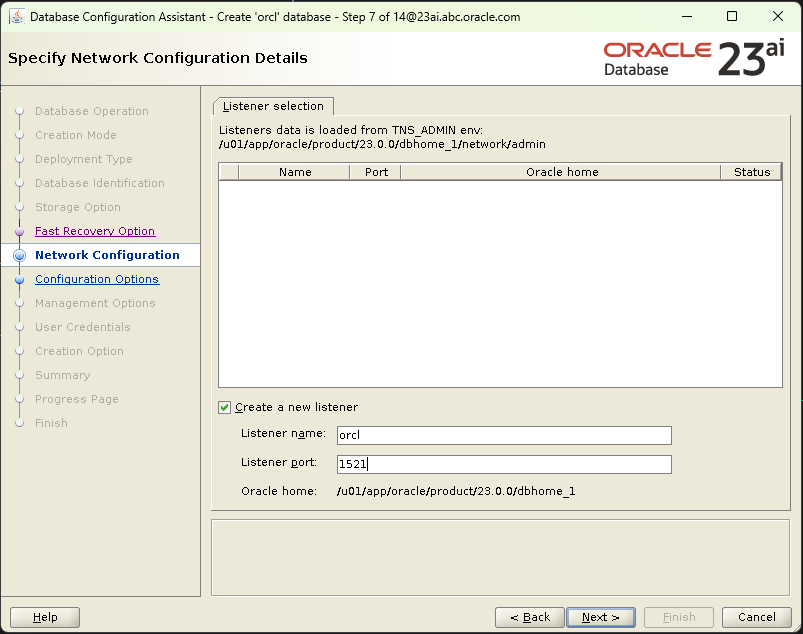
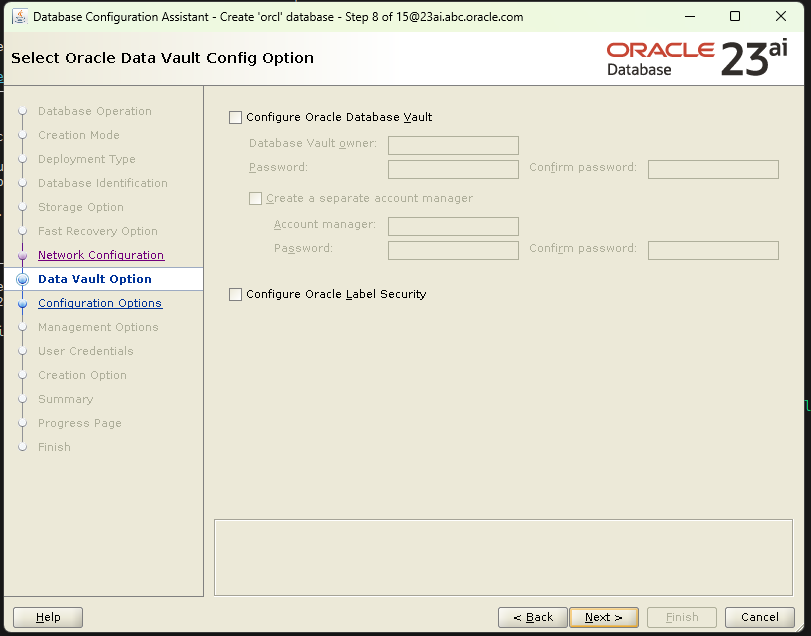
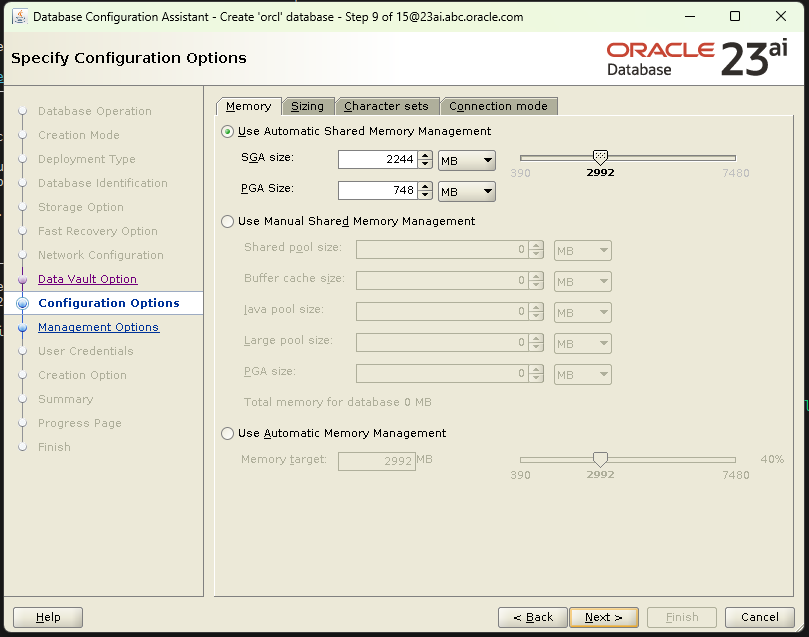
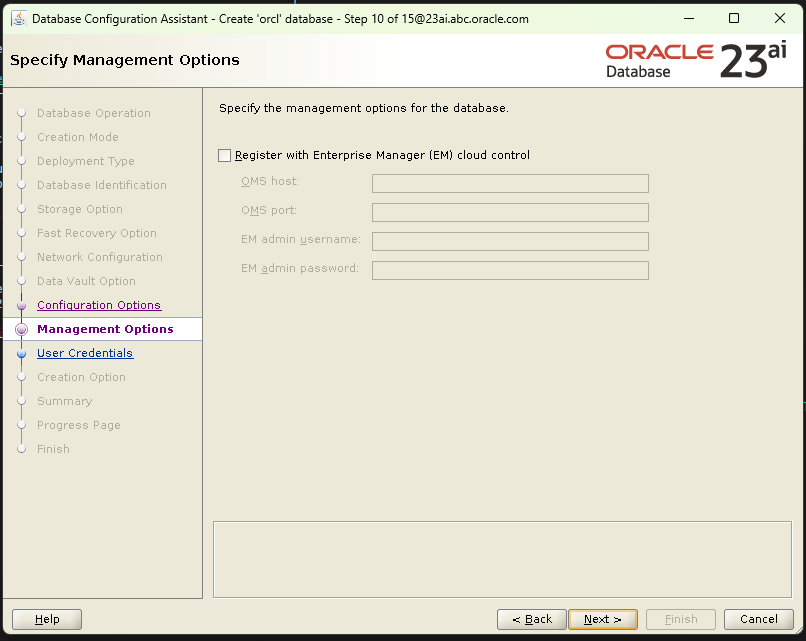
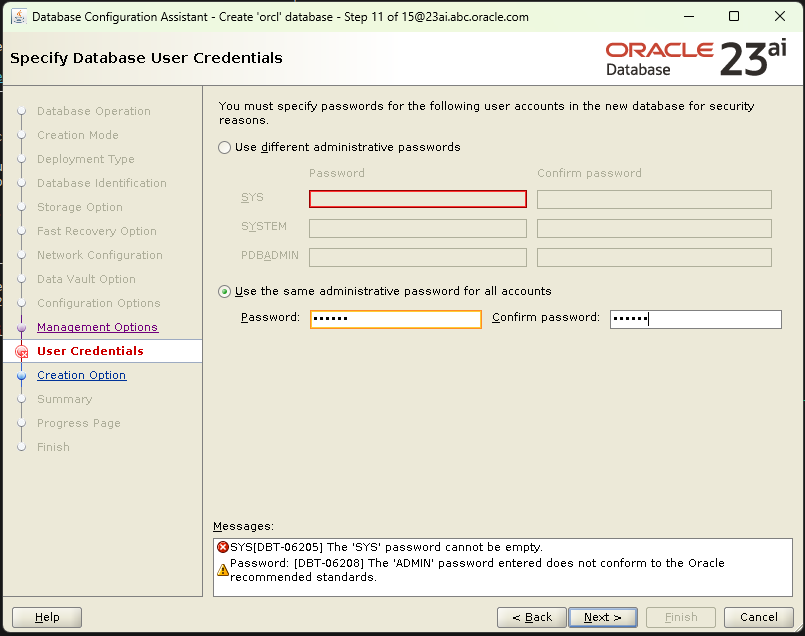
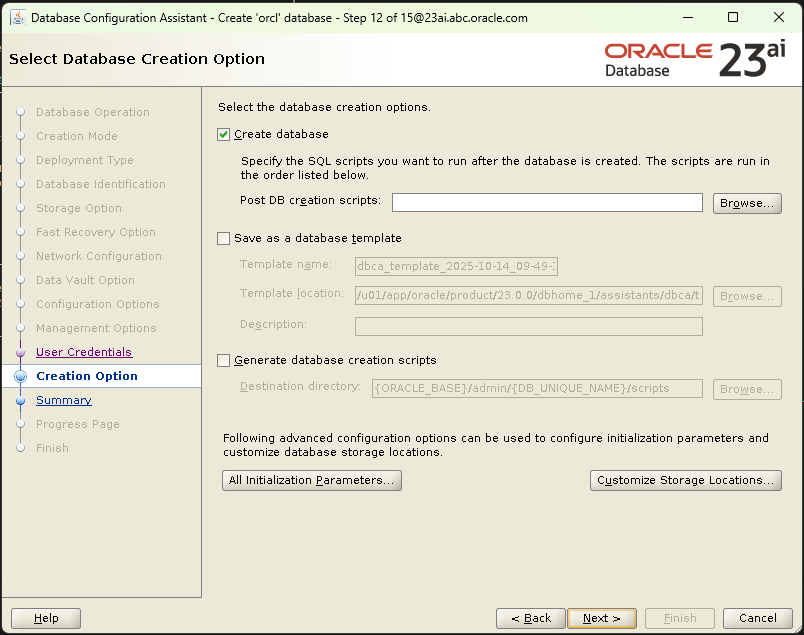
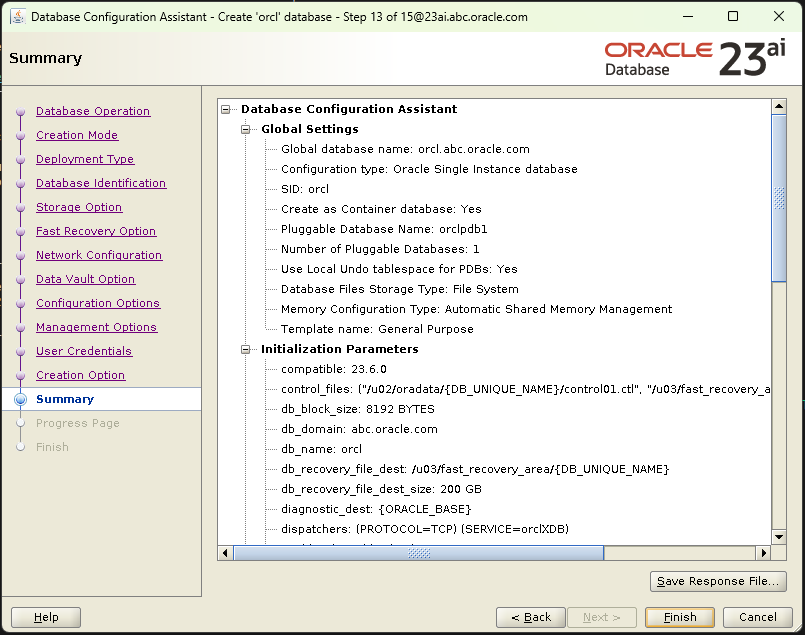
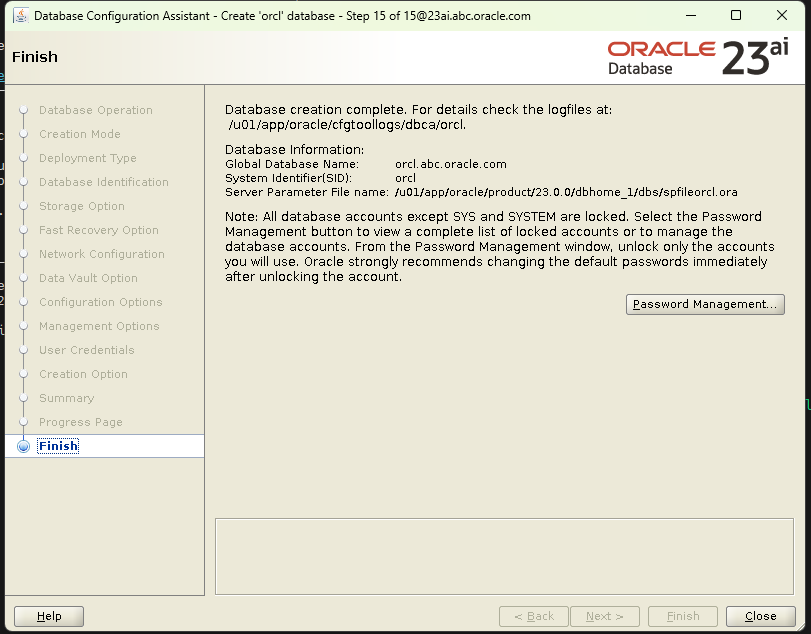
Start and verify the Listener:
5. Oracle APEX 24.2 Installation and Maintenance
With the database up and running, the next step is to install the low-code application development platform, Oracle APEX.
Get the latest version of APEX 24.2 from the Oracle APEX downloads page or with curl:
Next unzip the file into a staging directory on the server:
Connect to the database as SYSDBA and switch the container to the PDB where APEX will be installed. Then create the tqo neccessary tablespaces, then run the apexins.sql installation script.
Now run the apxchpwd.sql script to create or update the administrator account for the APEX instance.
Now we create the REST users / REST configuration:
This will create APEX_LISTENER, APEX_REST_PUBLIC_USER, etc., and grant the necessary permissions.
Now we verify that APEX users are unlocked:
Exit the SQL session and log back in to confirm that the objects are present:
6. Configuring Oracle REST Data Services 25.3 (ORDS)
ORDS acts as the web server and REST services layer for APEX.
6.1. Install JDK
To install ORDS, first install OpenJDK:
6.2. Install ORDS
Now download ORDS installer from the official Oracle server and unzip to the /u01 directory:
Now proceed to the installation:
Where --config '/u02/ordsdata' tells ORDS to use /u02/ordsdata as the configuration directory (separate from the product directory).
Select the default pool or create a new pool. If you create a new pool database, set the name for them:

Now select the first option, or specify database connection:

Now provide the SYS credentials to the installer:


Now you can change all of its configurations if you need:
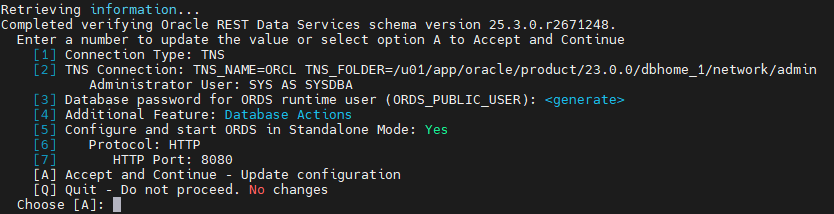
Now enter A and wait for ORDS installation finish.
6.3. Specify the apex “images” folder to ORDS
To tell ORDS where the APEX static images folder (images/static files/interface images) is located, you must configure the corresponding parameter during ORDS installation/configuration, or use ORDS commands to point to the correct directory. The images folder contains CSS, JS, images, icons, etc., and ORDS needs to know where to serve those static resources.To tell ORDS where the APEX static images folder (images/static files/interface images) is located, you must configure the corresponding parameter during ORDS installation/configuration, or use ORDS commands to point to the correct directory. The images folder contains CSS, JS, images, icons, etc., and ORDS needs to know where to serve those static resources.
To configure the folder, we will use the following command:
6.4. Install Tomcat 9 for ORDS
First, we download Tomcat 9 from the official Apache Tomcat website:
Now we proceed to install it in the /u01 directory:
Adjust user permissions (e.g., tomcat or oracle user) so that you can run Tomcat:
Optional: configure environment variables in ~/.bash_profile for the user who will use Tomcat: