Reser User Password
If you forgot the password for your Microsoft account and you were unable to reset the password with Microsoft’s online recovery methods, the best way is to create a new local account so you can sign in again to your Windows 10 computer. This method will also allow you to access all of your Microsoft account’s local files.
WARNING: If you encrypted files with EFS, you will no longer be able to access those files if you follow this procedure.
1. Boot from the Windows DVD
Make sure that your PC setup is configured to boot from a DVD and that UEFI and Secure Boot are disabled.
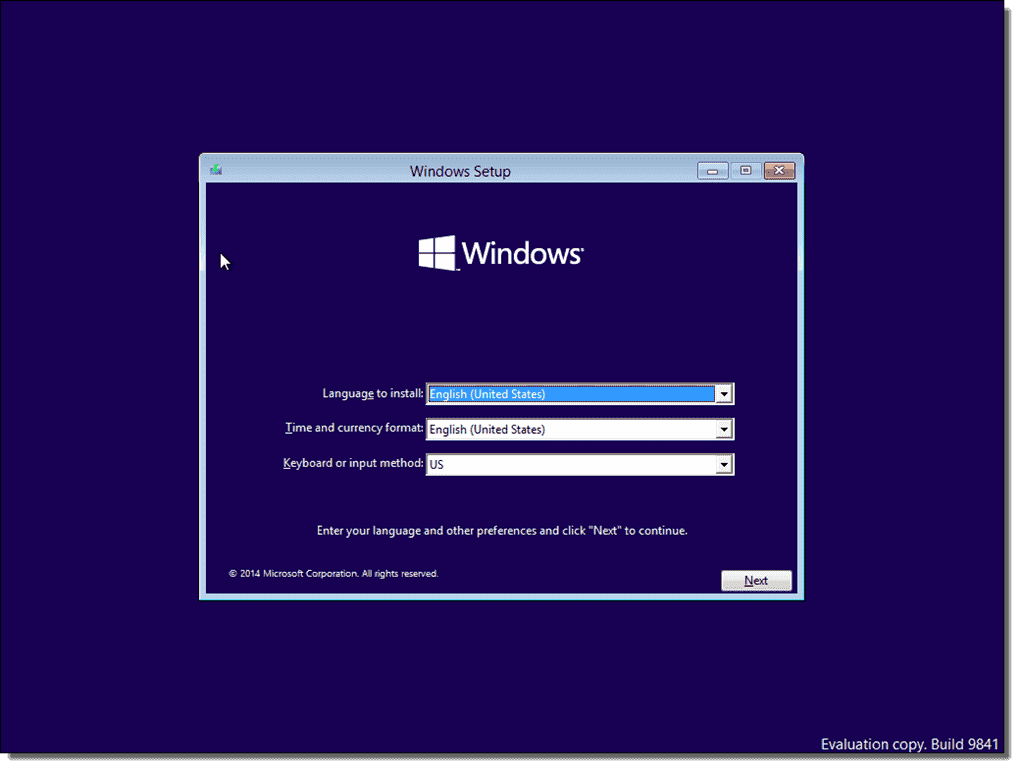
Press SHIFT + F10 to open a command prompt
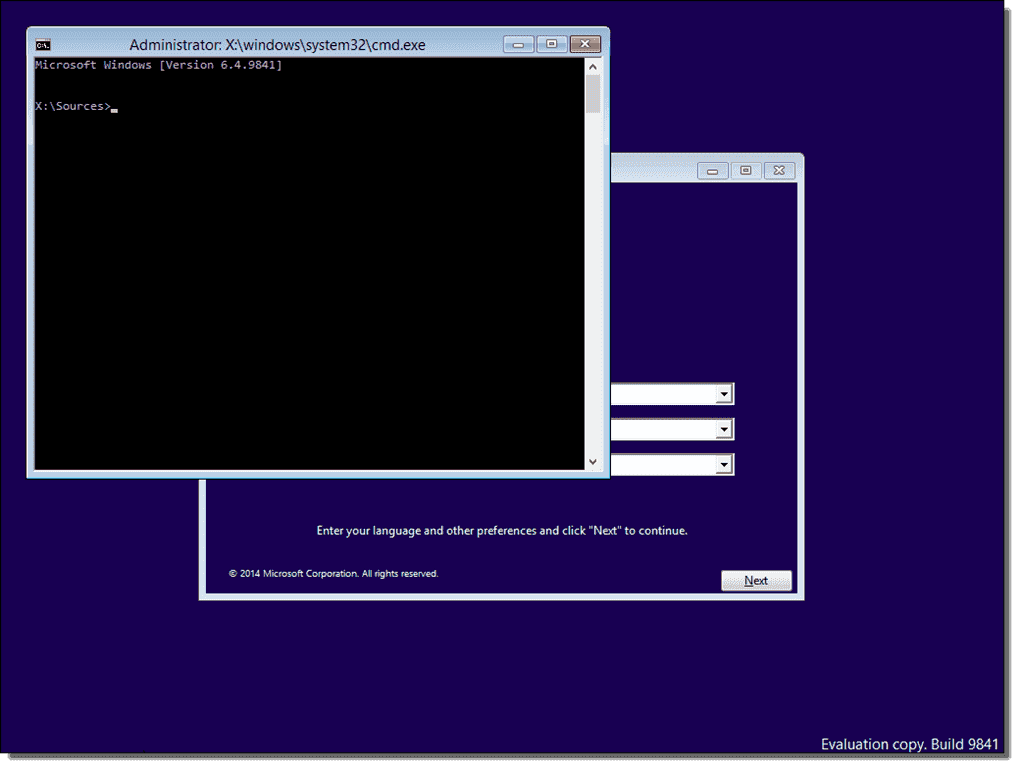
3. the file utilman.exe with cmd.exe.
Before you do this, you should make a copy of utilman.exe so that you can restore it later. Note that you can only restore this file if you boot again from the Windows DVD. Windows 10 is usually installed on drive D: if you boot from a DVD. You can verify this with "dir d:\windows\system32\utilman.exe." If the system can't find utilman.exe, try other drive letters.
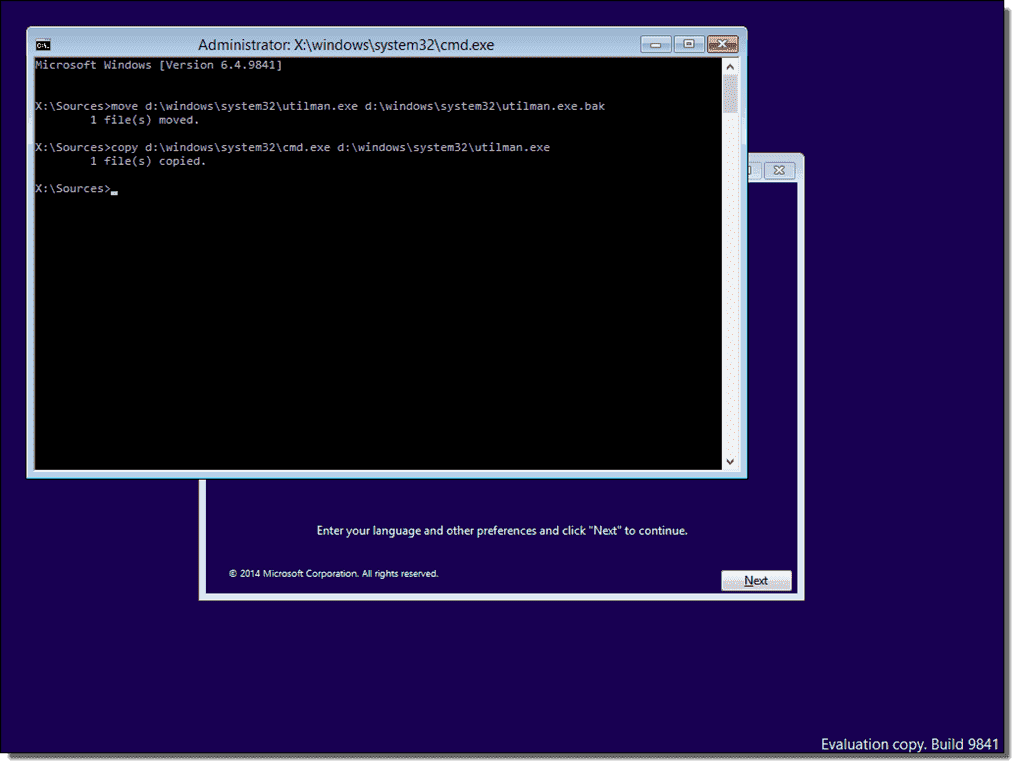
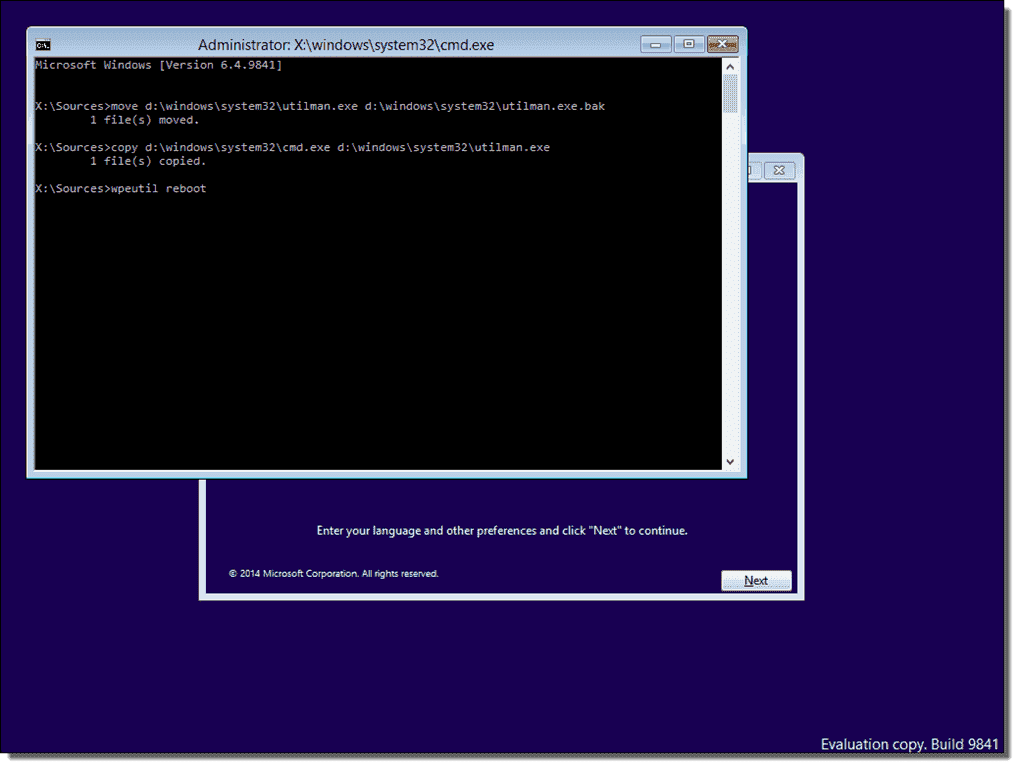
After you have replaced utilman.exe successfully, you can remove the DVD and restart your problematic Windows 10 installation:
4. On the Windows 10 sign-in page, click the Utility Manager icon
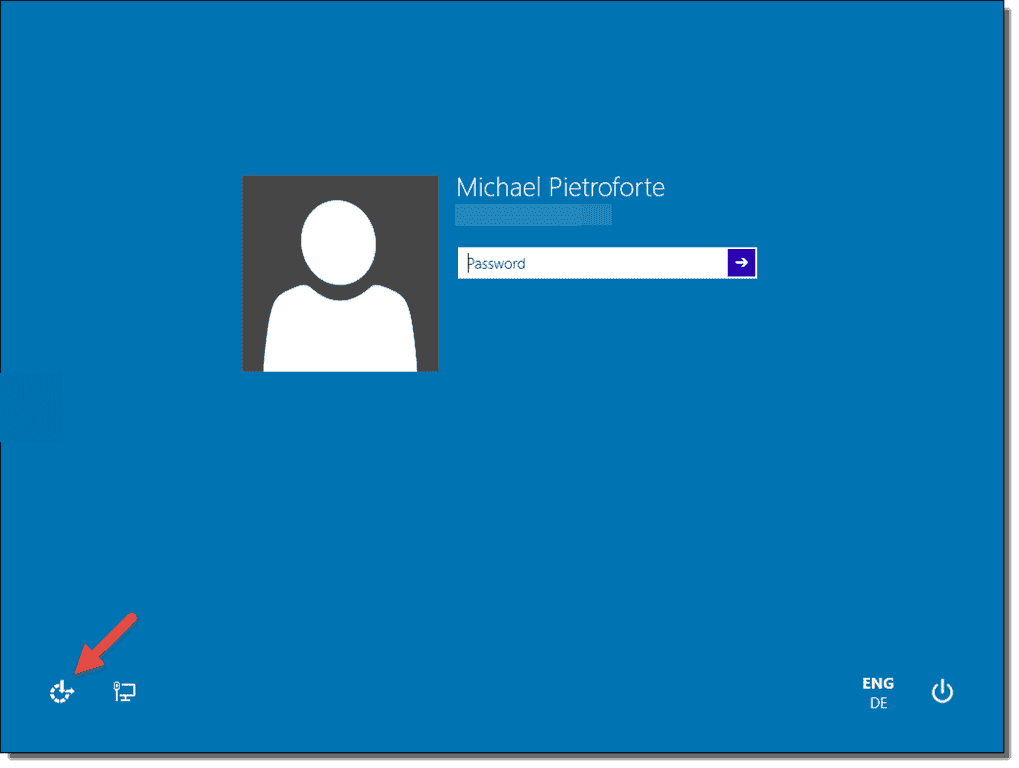
Since we replaced the Utility Manager with the cmd.exe, a command prompt should open now. Don’t worry about the error message.
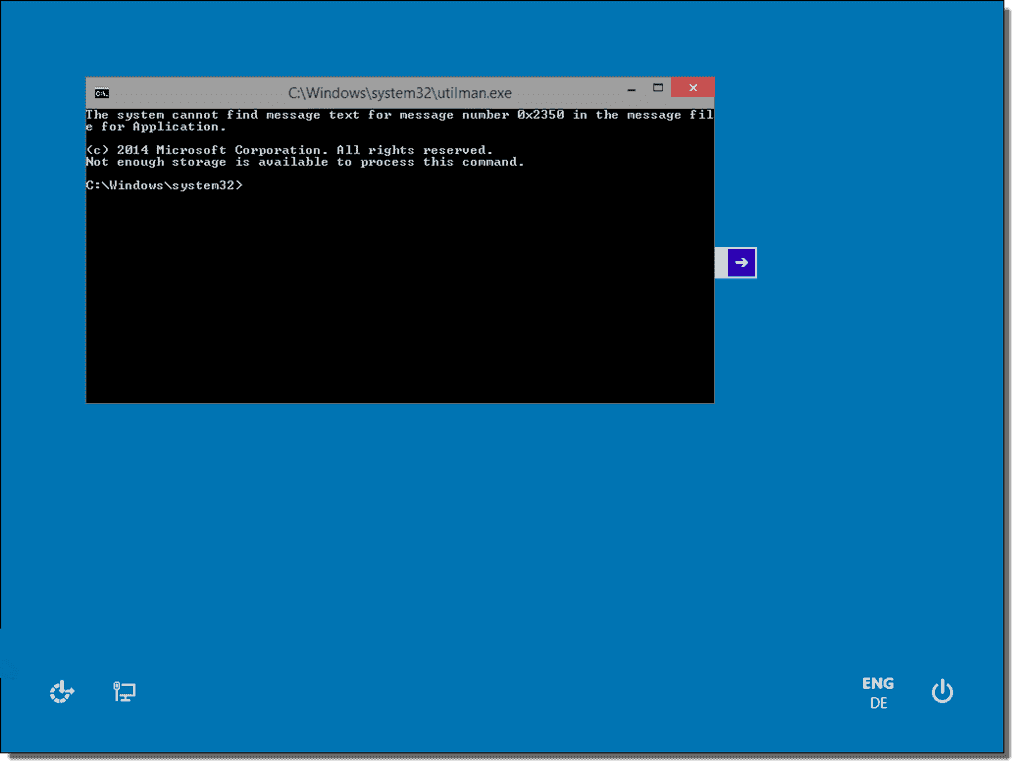
5. Add new user
You can now add a new user with the command below. We also have to add the user to the administrator group so that we regain full control of our Windows installation. Replace <username> with the account name of your choice. Note that the account name must not exist on this Windows installation. Don’t let the Windows 10 screen saver distract you.
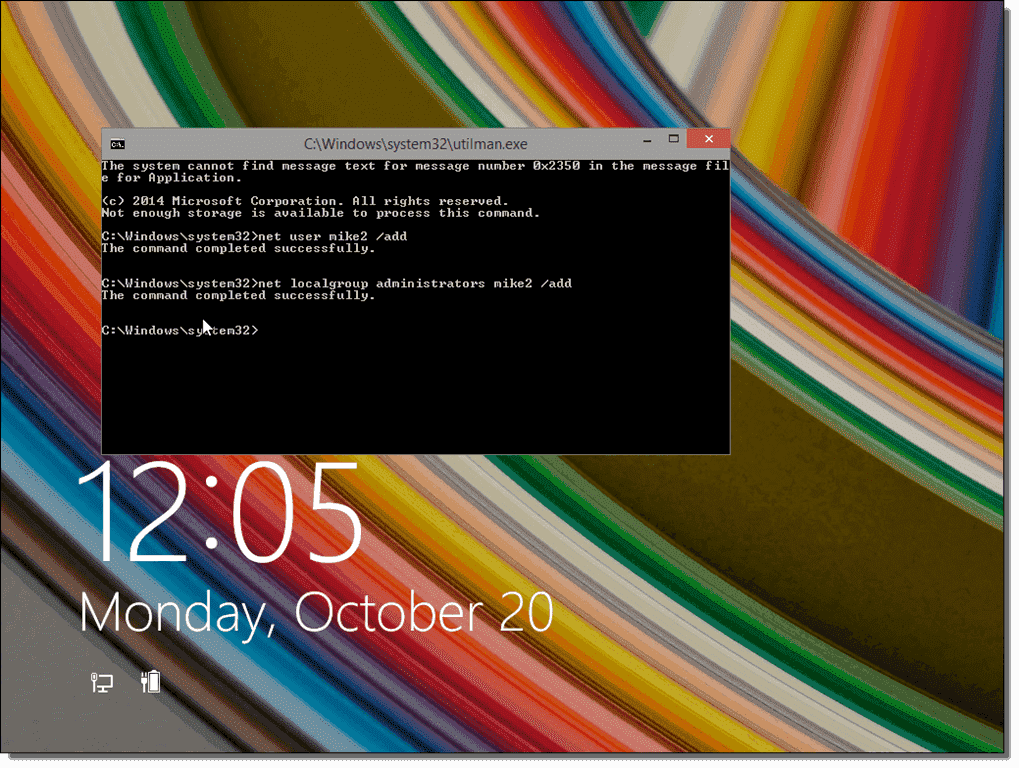
Click the screen to make the sign-in page appear again. Your new account should show up, and you can sign in without a password.
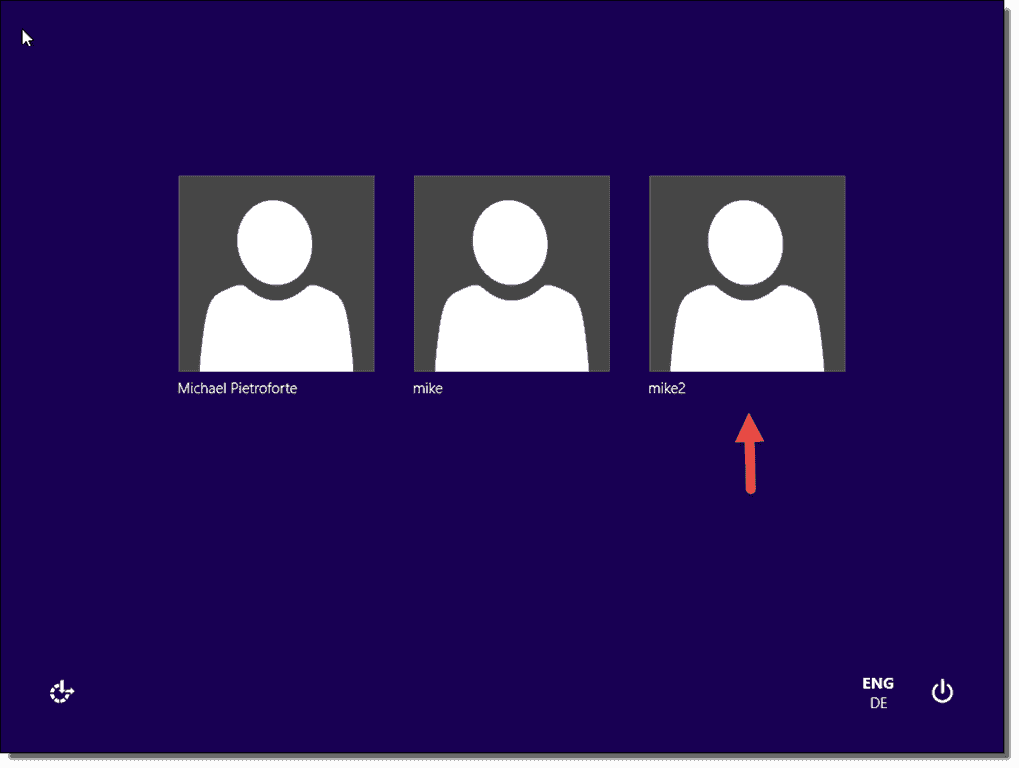
You can now access the files associated with your Microsoft account in the C:\Users folder.
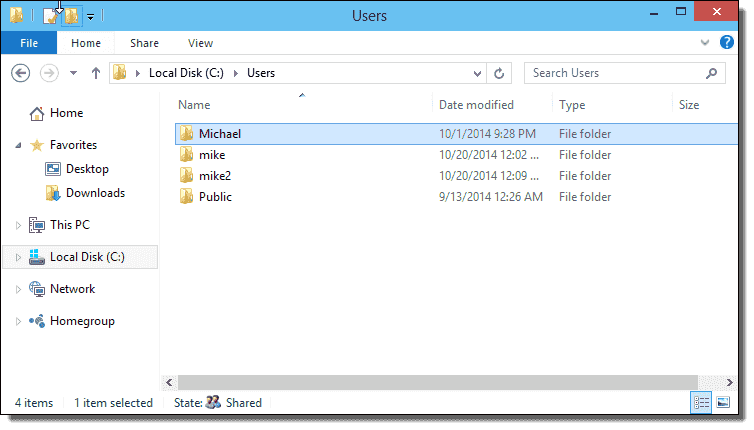
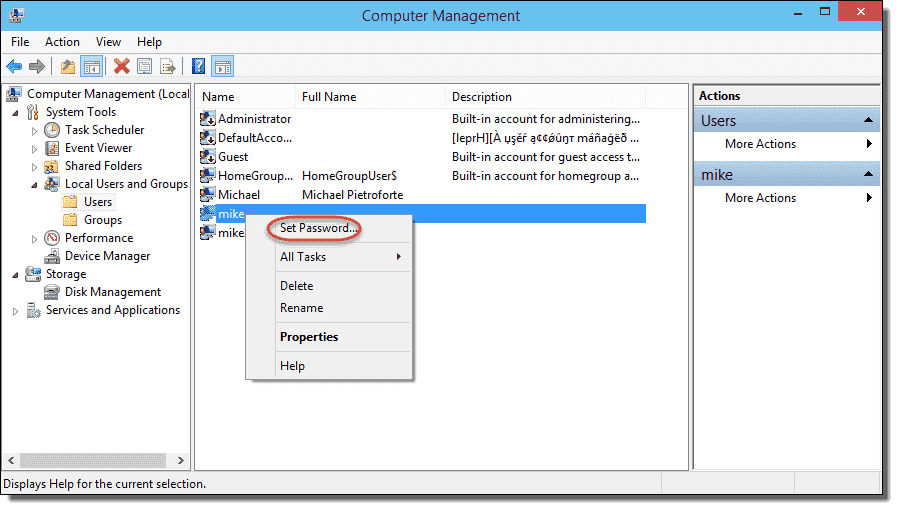
If you worked with a local account instead of a Microsoft account, you can reset your password in Computer Management. Right-click the Start button, select Computer Management, and navigate to Local Users and Groups. Right-click your local account and select Set Password.
A shorter way to reset the password of a local account is to replace the first command in step 6 with the following command. (In this case, you don’t need to create a new user).
Notice that resetting a password with this command doesn’t work with a Microsoft account. The only way to reset a Microsoft account password is through the online forms.
Bibliography:
https://4sysops.com/archives/reset-a-windows-10-password/