2.1 Install PHP Recommended Extensions
Install REMI Repository
Command to enabled the CRB repository:
Command to install the EPEL repository configuration package:
Command to install the Remi repository configuration package:
Install ImageMagick (Image Manipulation) Tool
To use the ImageMagick tool with PHP or Perl programming language, you will need to install ImageMagick with the Imagick PHP extension for PHP and ImageMagick-Perl extension for Perl.
Imagick is a simple PHP extension for creating and modifying images using the ImageMagick API program. There is a confusion in name, as people think that ImageMagick and Imagick both are the same, but you can use ImageMagick without Imagick extension but you need both installed on your machine to use and run it.
Installing ImageMagick from Repository
First, install following prerequisite php-pear, php-devel and gcc packages to compile the Imagick PHP extension.
Once you’ve installed php-pear, php-devel, and gcc packages, you may now install ImageMagick software for PHP and Perl support using dnf command.
Next, verify that ImageMagick has been installed on your system by checking its version.
Installing ImageMagick 7 from Source Code
To install ImageMagick from source, you need a proper development environment with a compiler and related development tools. If you don’t have the required packages on your system, install development tools as shown:
Now, download the latest version of the ImageMagick source code using the following wget command and extract it.
Configure and compile the ImageMagick source code. Depending on your server hardware specs, this may take some time to finish.
Verify that the ImageMagick compile and install were successful.
Install Imagick PHP Extension
Install from PECL
Next, compile the Imagick for PHP extension. To do, simply run the following ‘pecl‘ command. It will install ImageMagick and imagick PHP extension module imagick.so under /usr/lib/php/modules directory. If you are using a 64-bit system, the module directory path would be /usr/lib64/php/modules.
Note: It will ask you to provide Imagemagick installation prefix, simply hit enter to auto-detect.
Install from REMI Repository
If for some reason the installation from pecl fails, we can install the extension from the REMI repository:
Now, add the imagick.so extension to /etc/php.ini file.
Next, restart Apache webserver.
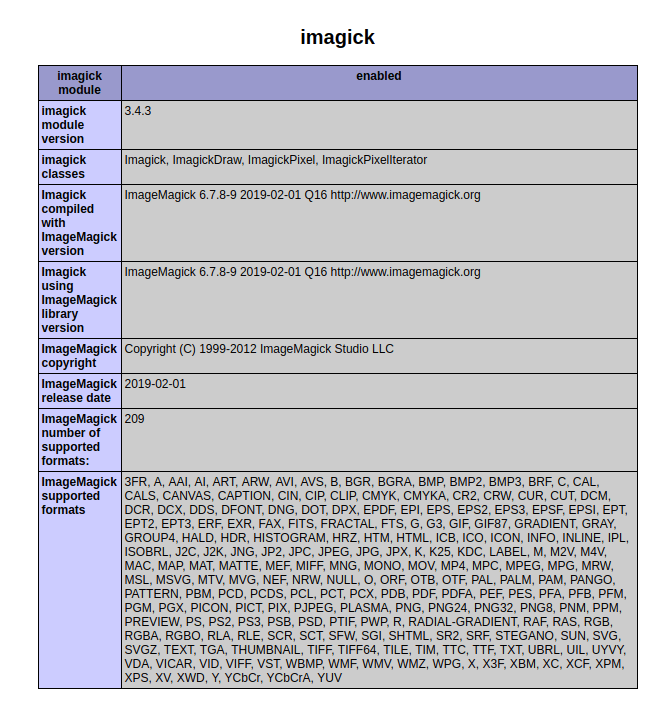
Verify the Imagick PHP extension by running the following command. You will see the Imagick extension similar to below.
Install PHP Zip Extension
Install from package manager
Use DNF to install the PHP Zip extension:
Add the extension to your PHP configuration file
Check the Installation
After installation, check if the Zip extension is active:
Run in the terminal:
If you see zip in the output, the extension is active. You can also create a PHP file with this content:
Save this as check_zip.php and run it in your browser or command line to confirm the installation.
Install using PECL (PHP Extension Community Library)
PECL offers another way to install PHP extensions. To use PECL for installing the ZIP extension:
Install PECL
Install the ZIP extension through PECL
Add the extension to your PHP configuration
Restart your web server to apply the changes.
Install Intl PHP Extension
As you have php-commom from remi repositories, you need to get php-intl from remi also.
Add the extension to PHP configuration file
Add PHP extensions to path
If you installed the extensions from the REMI repository and the system still does not recognize them, you must create a symbolic link to the php path. This happens because the REMI packages are installed in a different location by default than the one where php is installed. You must do this with all the extensions, and it is done in the following way:
For example:
This will create a symbolic link, so every time the package is updated, php will recognize the updated library without needing to do anything