4. Install WordPress
Step 1: Creating a WordPress Database
We will begin by creating the database for the WordPress installation, which is used to store all the files during and after the installation.
So, log in to the MariaDB database:
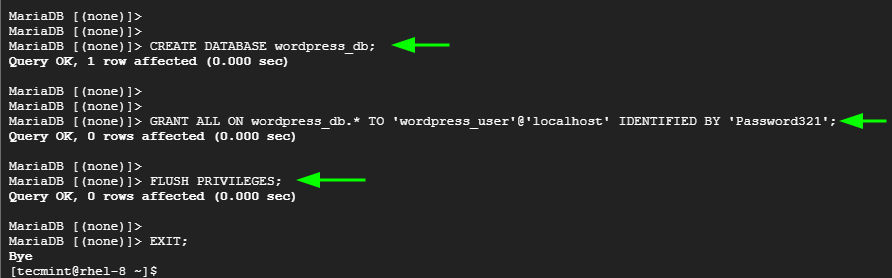
Once on the MariaDB shell, create the database and database user and grant all the privileges to the database user.
Save the changes and exit the MariaDB prompt.
Step 2: Download and Install WordPress in RHEL
With the WordPress database in place, the next course of action is to download and configure WordPress. At the time of publishing this guide, the latest WordPress version is 5.9.1.
To download WordPress, use the wget command to download the binary file from the official site.

Next, extract the tarball file:
Next, we are going to copy the wp-config-sample.php file to wp-config.php from where WordPress derives its base configuration. To do that run:
Next, edit the wp-config.php file.
Modify the values to correspond to your database name, database user, and password as indicated in the image shown.
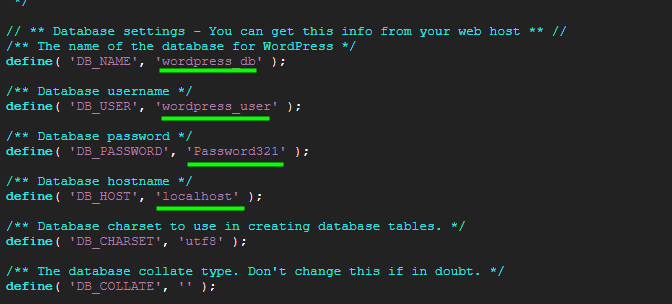
Save the changes and exit the configuration file.
Next, copy the WordPress directory to the document root:
Be sure they assign the necessary directory ownership and permissions as follows:
Step 3: Create Apache WordPress VirtualHost File
We also need to create a configuration file for WordPress in order to point client requests to the WordPress directory. We will create the configuration file as shown:
Copy and paste the lines below to the configuration file.
Save and exit the configuration file.
To apply the changes, restart Apache.
Step 4: Configure SELinux for WordPress
In most cases, RHEL 8 comes with SELinux enabled. This can be a hindrance, especially during the installation of web applications. As such, we need to configure the right SELinux context to the /var/www/html/wordpress directory.
For the changes to come into effect, execute:
Then reboot your system.
NOTE: Before you reboot, ensure that Apache and MariaDB services are enabled so that they can start automatically on boot.
By default, SELinux denies communications to other pages on the network. To solve this, you have to change some SELinux policies for the Apache Server.
Now SELinux will permit WordPress to make outgoing network connections to check for updates and install plugins.
To ensure that WordPress does not block the network connection, we will add the following line to the wp-config.php file:
Then reboot your system.
Step 5: Finalize WordPress Installation
The last step is to complete the installation from a web browser. Launch your browser and browse your server’s IP address:
On the first page, select your preferred installation language and click Continue.

In the next step, fill in your Site’s details.
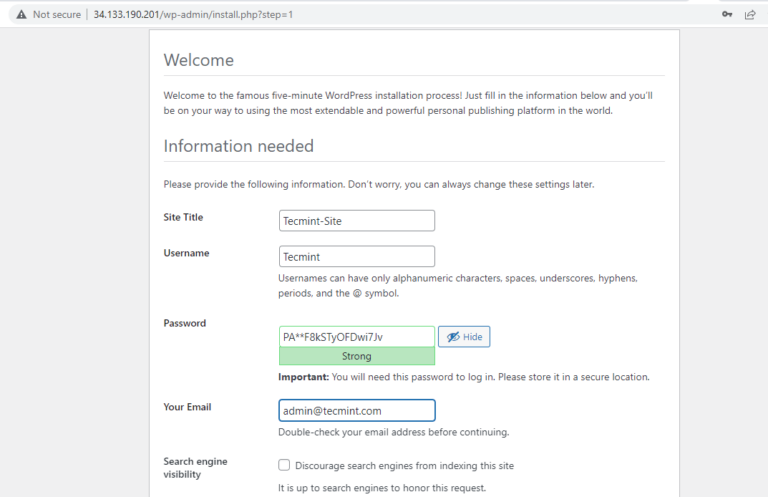
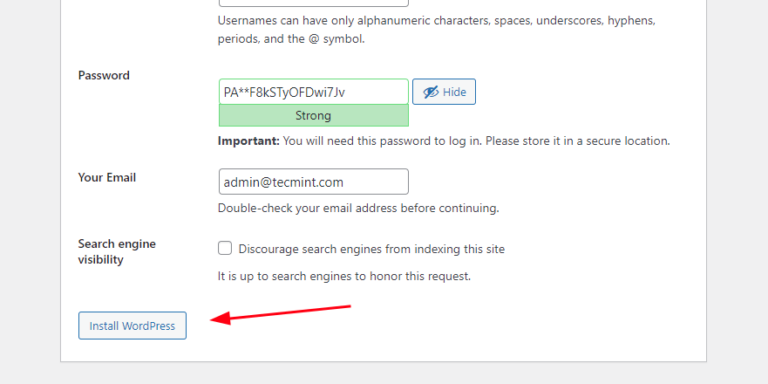
Then scroll down and click Install WordPress.
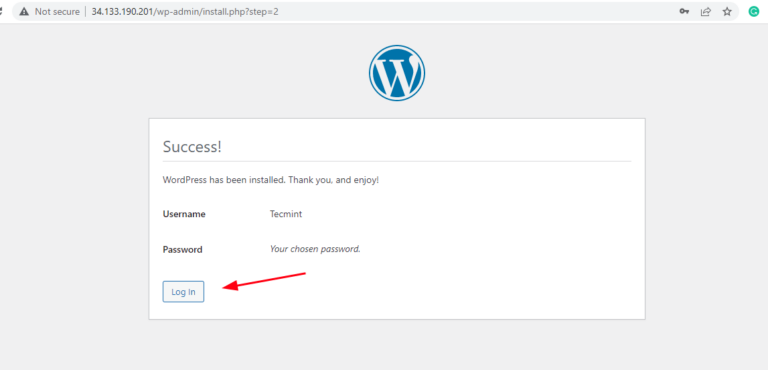
And in flash, WordPress installation will be complete! To log in, click the Login button.
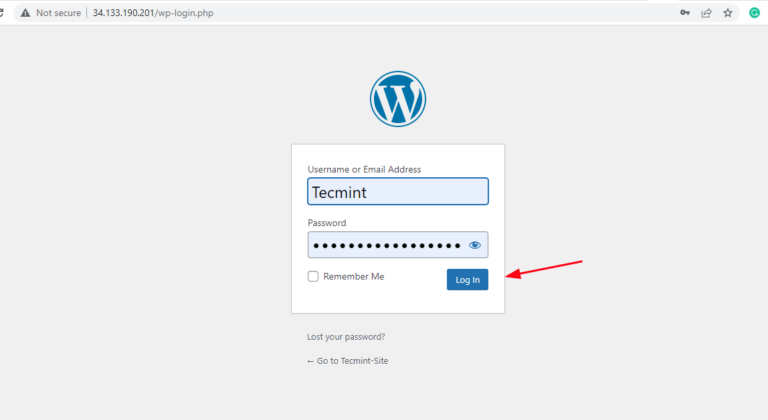
On the login screen, provide the username and password and click Log In.
This ushers you to the WordPress dashboard as shown. From here, you can customize your website with rich and elegant themes and plugins.
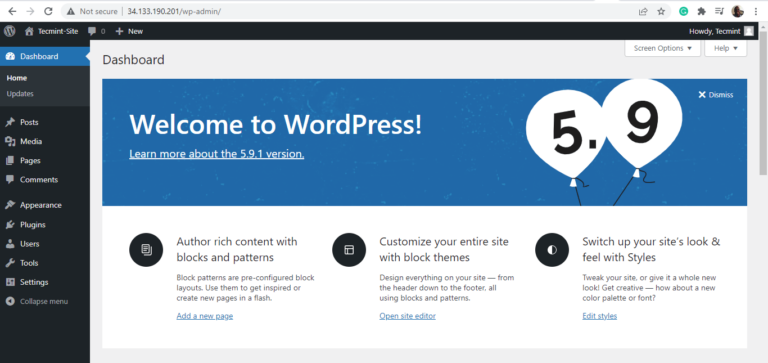
And that is it! You have successfully installed WordPress on RHEL 9.
Appendix 1: File Permissions
If you get any 403 Forbidden error, or any other permissions error, or if you have changed the location of the WordPress root folder, run these commands in the console:
And this:
And the perrmission problem was resolved!