Configure Chrony NTP Server on Debian 12/11/10
NTP (Network Time Protocol) is a protocol that synchronizes clocks across a network to provide accurate time. Clocks can be found on personal computers, network routers, servers, and other devices. NTP-enabled programs can typically act as both a client and a server, as well as perform peer-to-peer communication. To disseminate time, NTP uses a hierarchical system. Servers at the top of the hierarchy are connected to reference clocks. This is essential in a communication system so that the computers may communicate seamlessly.
Benefits of NTP Time Synchronization
Here are the advantages of NTP:
It synchronizes the devices’ internet connections.
It increases the level of security within the building.
It’s used in Kerberos and other authentication systems.
It offers network acceleration, which aids in the diagnosis of issues.
Used in file systems where network synchronization is challenging.
Get to Understand Chrony
The chrony daemon (chronyd) is a lot better than ntpd. It can keep accurate time on systems with busy networks or systems that are unavailable for extended periods of time, as well as virtualized systems. Furthermore, it synchronizes the system clock faster than ntpd and may be simply setup to work as a local time-server. Most distributions recommend using the chrony service for software clock synchronization, with a few exceptions.
Step 1: Setting Correct Timezone
On system timedatectl command can be used to get information about the system clock and its settings, as well as enable and stop time synchronization services.
It has the following syntax:
When you use the timedatectl command by default, it displays the current date and time settings in the system:
Set Time and Date with timedatectl
As per the syntax of timedatectl command, you can set time and date as follows:
List Available Timezones
timedatectl will display a list of available time zones:
Set the Timezone
timedatectl can be used to set the correct timezone as follows, i.e my correct timezone is Africa/Nairobi.
We can confirm the changes as follows:
Step 2: Install Chrony NTP Server on Debian
Chrony NTP server can be installed on Debian as follows:
Installation output:
After that, start the Chrony service and enable to start on boot:
Check the chrony service status:
Step 3: Configure NTP server with Chrony
The /etc/chrony/chrony.conf is the default configuration file for the NTP server. Open this file in your preferred text editor and comment on the default pool before adding a list of NTP servers that are closest to your location.
Setting NTP pool servers in the configuration file:
Activate NTP Service using the commands below:
Then restart the chronyd service:
Managing the chrony Service
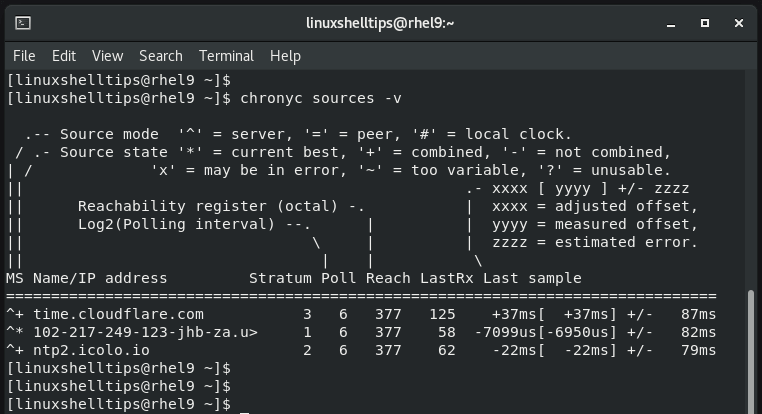
Using the chronyc sources -v tool to look at source time-servers:
Using the following command to view software clock information:
As per the above output, we get the following:
Reference ID: The reference ID and name to which the computer is currently synced.
Stratum: Number of hops to a computer with an attached reference clock.
Ref time: This is the UTC time at which the last measurement from the reference source was made.
System time: Delay of system clock from synchronized server.
Last offset: Estimated offset of the last clock update.
RMS offset: Long term average of the offset value.
Frequency: This is the rate by which the system’s clock would be wrong if chronyd is not correcting it. It is provided in ppm (parts per million).
Residual freq: Residual frequency indicating the difference between the measurements from reference source and the frequency currently being used.
Skew: Estimated error bound of the frequency.
Root delay: Total of the network path delays to the stratum computer, from which the computer is being synced.
Leap status: This is the leap status that can have one of the following values – normal, insert second, delete second or not synchronized.
Using the command below to view time-server statistics:
Step 4: Configure Chrony NTP Clients
Configure Client to Synchronize Time with Chrony NTP
Next, you need to allow clients on your network access to the server to synchronize time and date settings. Once again, head back to the configuration file.
On Debian:
On RHEL:
Append this line to specify the network subnet of which the NTP server is a part.

Save the changes made and exit the configuration file.
Next, verify that your NTP server is using online NTP servers for time synchronization.
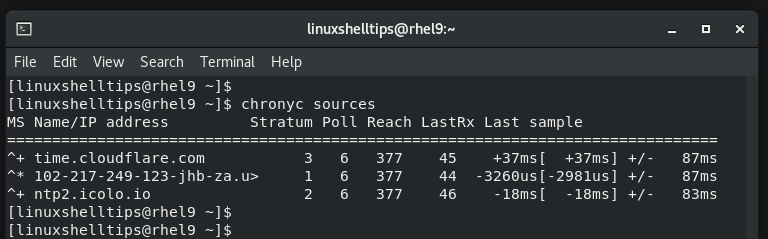
For detailed output use the -v flag as shown.
If you have Firewalld running, consider allowing NTP traffic by running the following commands.
Configure Chrony NTP Client to Sync Time with NTP Server
The next thing to do is to configure a client system to receive time and date settings from the NTP server. Ensure that the client is in the same timezone as the NTP server.
You can configure the timezone on the command line as follows.
On the client, ensure that Chrony is installed as shown.
On Debian:
On RHEL:
Once installed, start and enable the Chrony daemon.
Next, we need to configure the client to sync date and time settings from the NTP server. As such, modify the configuration file:
On Debian:
On RHEL:
Comment out the pool address and add the following line where the IP address corresponds to that of the NTP server.
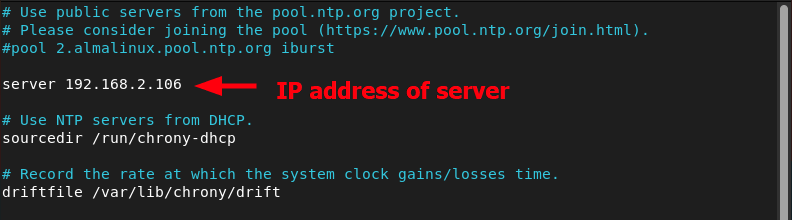
Save the changes made and exit the configuration file.
Then start the NTP synchronization.
To apply the changes made, restart the Chronyd service.
Then verify the time synchronization as follows.
From the output below, It’s noticeable that the client is getting time and date settings from the NTP server.

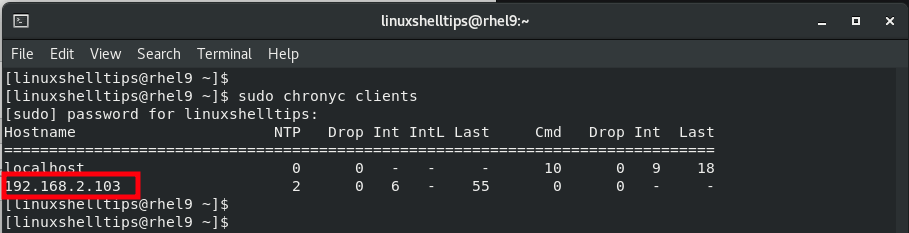
Back at the server, you can verify the NTP clients. You should see the IP address of the NTP client listed as shown below.